If you are one of those people upgrading from a palm pilot to an iphone probably you are having a hard time importing your contacts from the palm software to the iphone. luckily there is always a way to do things, so in this article I will share some tips on how to do that.
The only way to synch contacts to the iphone is by using itunes ( that’s the only way I know of) so the route we need to take is getting our contacts from the palm desktop software to Outlook and then to the iphone. some palm software have the ability to sync to outlook using software like PocketMirror etc. so that would make things simpler by just synching your itunes with Outlook. but I guess that’s not your case, otherwise you wouldn’t be here (:-)
The Palm Desktop software does not let you export data in many formats, the most common formats you can export are .ABA and .CSV, and the only formant Outlook accept is .CSV so I guess the only option we have is to export contacts as .CVS format, here is how you do it.
Step 1: from your palm desktop software click on File and then Export . choose to export the file as “comma separated (*.csv;.text) and on range select ALL. save the file anywhere you want, but make sure you remember where it is.
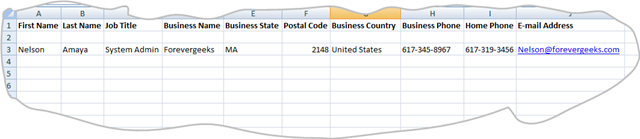
Step 2. once the contacts have been exported, you need to modify the field names in the .csv file , so Outlook can recognize it. these are some of the fields Outlook will recognize:
- First Name
- Last Name
- Job Title
- Business Name
- Business State
- Postal Code
- Business Country
- Business Phone
- Home Phone
- Mobile Phone
- E-mail Address
for example your spreadsheet will look like this:
step 3:
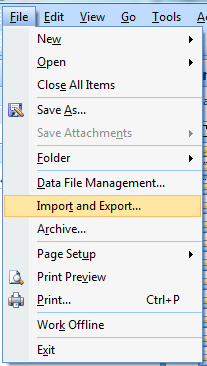
after you finish modifying the spreadsheet you need to import them to Outlook. to do that go to your outlook and click on File, and then choose Import and Export:
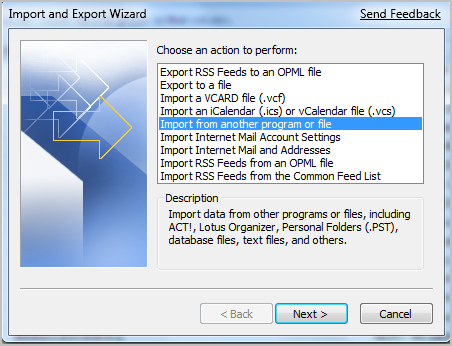
Then choose Import from a another program or file:
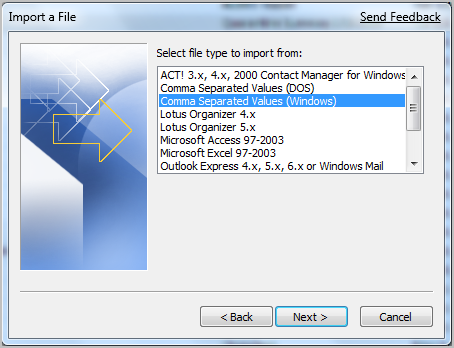
Choose Comma Separated Values (Windows) on the following screen:
choose the .CSV file you created earlier, by clicking on the browse button:
from here choose if you want to import duplicates or not.
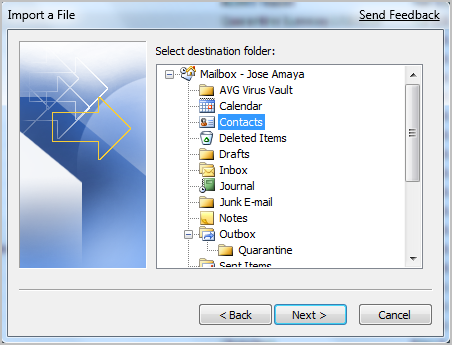
select your destination folder on the next screen.
click on Finish on the following screen.
that should import your contacts to Outlook.
Step 4 :
now you need to synch your Outlook contacts with itunes.
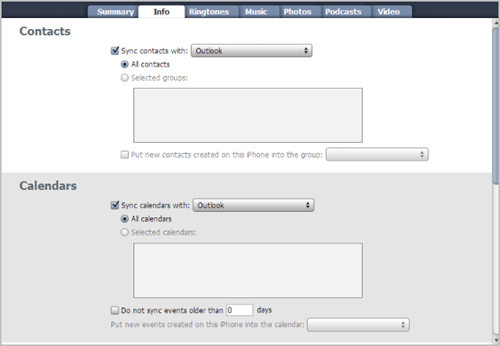
when you open itunes, your iphone should get recognized automatically. click on the iphone icon, and the following screen will show up:
under the info tab.
scroll to the bottom, and click on Sync.
that should start the synching between Outlook and itunes.